Find any database, vendor, or invoice, and jump anywhere, from the keyboard.
The quick launcher (⌘K)
The quick launcher gets you anywhere in the admin, and starts most everyday jobs, from the keyboard. Press ⌘K on a Mac or Ctrl+K on Windows, from any admin page, or click Search or jump to… at the top of the sidebar.
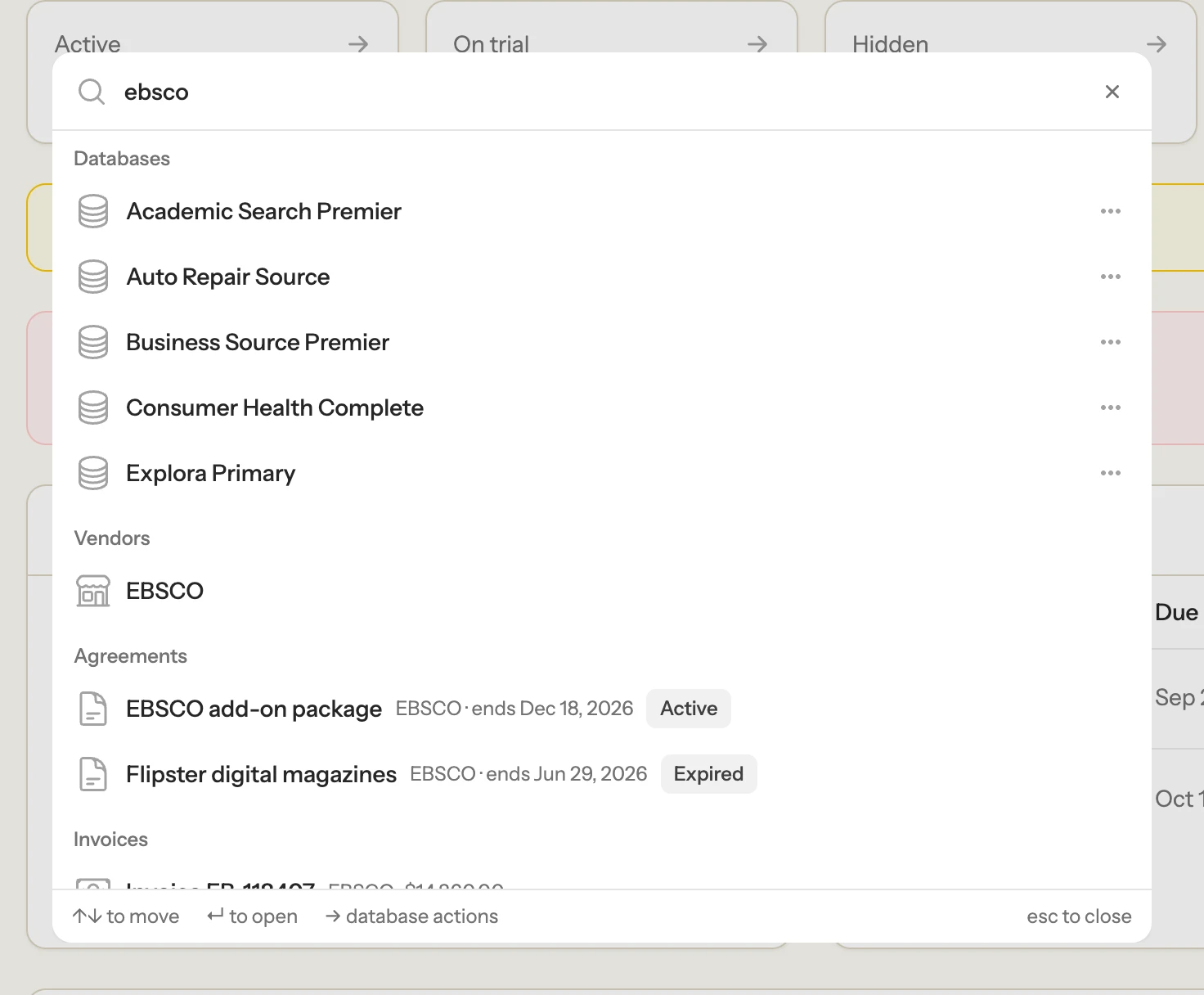
Finding things
Start typing and the launcher searches your library's:
- Databases, by name, alternate names, descriptions, and search hints, ranked the same way as the public list. Hidden and retired databases are labelled.
- Vendors, by name.
- Agreements, by title or vendor. Each shows its vendor, end date, and status, so typing a vendor's name lists everything you have from them.
- Invoices, by number or vendor, with the amount and an Unpaid or Overdue badge.
- Lists, subjects, and librarians, by name.
With nothing typed, it shows the databases edited most recently.
Use ↑ and ↓ to move and Enter to open. Esc closes the launcher.
Doing things
The launcher also lists actions and every admin page, and matches the words people tend to use for them. So invoice finds Add an invoice, renew finds Renewals, restore finds Recently deleted databases, and ezproxy finds Proxies. You only need the start of each word: new inv works.
- Create: add a database, import a CSV, add a vendor, agreement, invoice, list, subject, type, librarian profile, or proxy, or invite a staff user.
- Go to: every page in the sidebar, plus databases on trial and recently deleted databases.
- Help: each page of this documentation.
- Account: your profile, password and security, light or dark mode, and logging out.
You only see what your role allows. Viewers, for example, don't see the Add actions, and only owners see Plan & billing.
Adding something by name
If what you type doesn't match anything, the launcher offers to add it:
- Add database "…" opens the new database form with the name and permanent link already filled in.
- Add vendor "…" and Add subject "…" create it straight away and open it so you can fill in the rest.
Actions on a database
Highlight a database and press → (or Tab), or click the … beside it, to see what you can do with it:
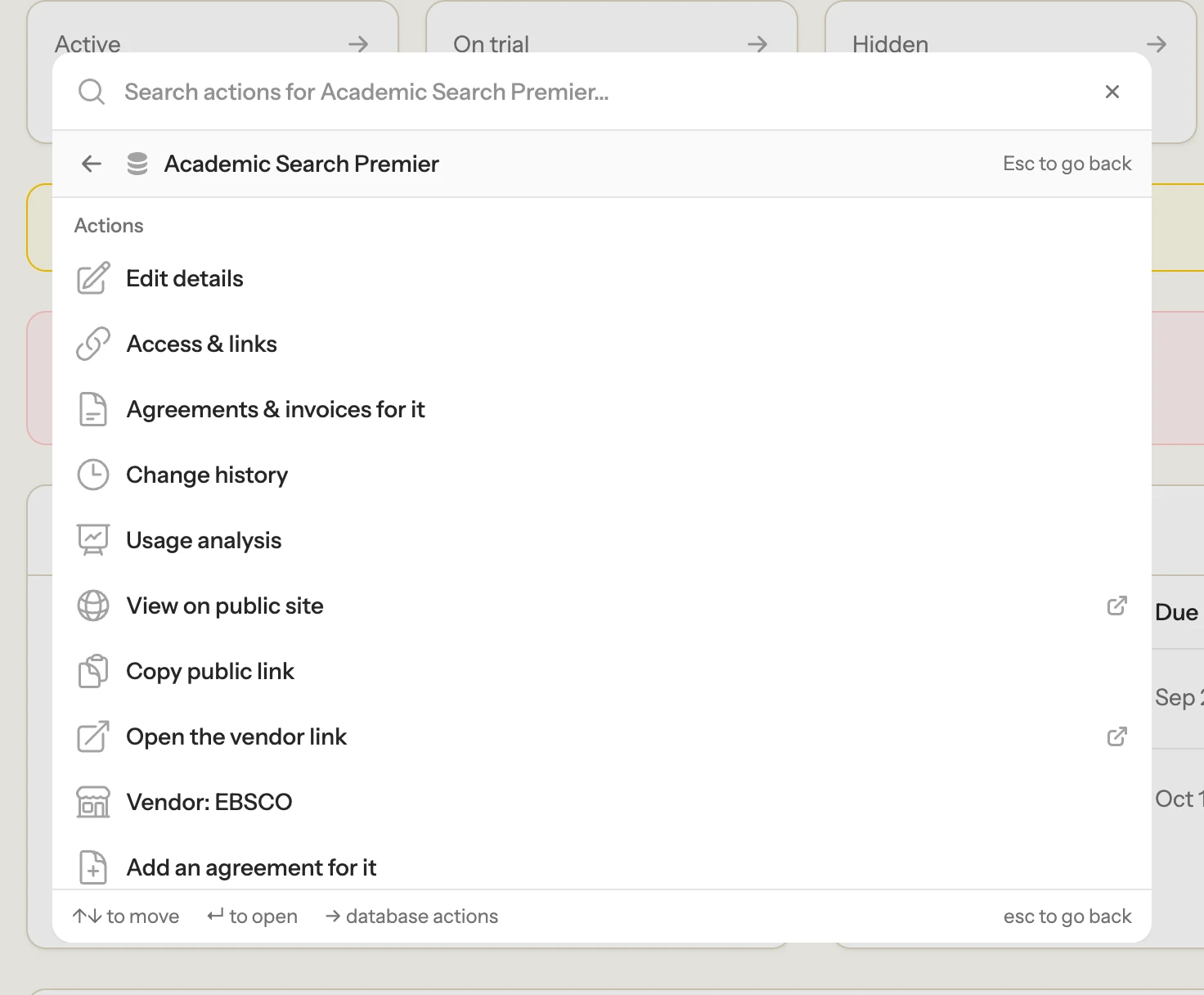
- Edit details, Access & links, Agreements & invoices for it, and Change history open the database on that tab.
- Usage analysis shows its twelve-month trends.
- View on public site and Copy public link use its permanent link. They're left out for hidden and staff-only databases.
- Open the vendor link opens the vendor's URL without the proxy, which is handy for checking a link that patrons report as broken.
- Vendor opens the vendor's page.
- Add an agreement for it and Add an invoice for it start a new agreement or invoice that already has this database (and its vendor) filled in.
Type to narrow the list: hist goes straight to Change history. Esc, or ← in an empty search box, takes you back to your search.